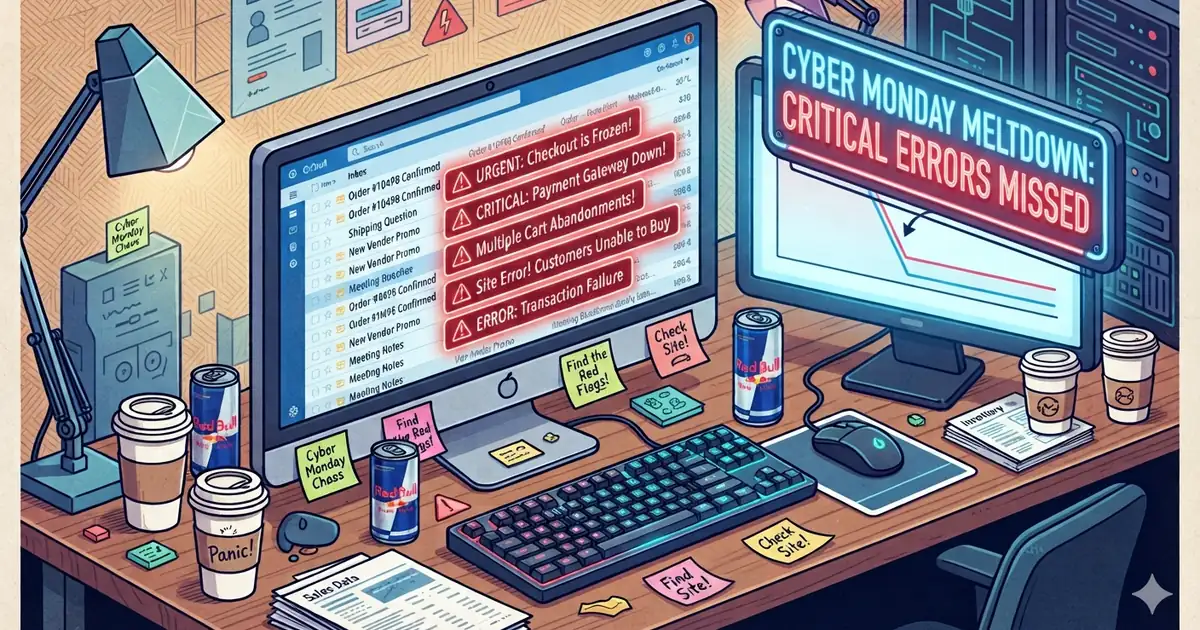
On a regular Monday, sorting through 100 emails is a chore. On Cyber Monday, five unread messages about a broken checkout could mean you don’t hear about the problem until the sale is over.
Those warnings may be buried between order confirmations, vendor promotions, shipping questions, and everyday business conversations.
Site problems do cost sales. In a Baymard Institute survey, 17% of US shoppers who abandoned a cart said the site had errors or crashed. Big platforms aren’t immune either: Shopify had trouble for much of last year’s Cyber Monday.
My recommendation for this Cyber Monday
Cyber Monday is November 30. That isn’t enough time to choose an AI tool, review its permissions, and test it properly. For this year, set up a free Gmail filter that pulls issue reports into their own folder. It takes a few minutes:
-
In Gmail, click the search options button at the right end of the search bar.
-
Copy the line below and paste it into the Has the words box. Change
orders@yourbusiness.comto the address your store sends order confirmations from.("can't pay" OR "can't check out" OR "won't load" OR "not working" OR broken OR error) -from:orders@yourbusiness.com -
Click Create filter. Choose Apply the label, create a label called Website Issues, and check Always mark it as important.
-
Have someone check that label every 30 minutes during the sale.
The line looks for phrases people use when something is wrong. It skips your own order confirmations, which would otherwise fill the folder on a busy day.
A filter only matches the words you give it. It will catch “I can’t pay” and miss “the button does nothing.” That gap is where an AI assistant does better, and it’s worth planning for next season.
Next season: let AI spot the pattern
AI could help you spot related issue reports even when customers describe them differently. The job is narrow: point a person at the messages that need them.
The rest of this post covers how that works: what an email connector is, what a useful alert looks like, and which assistants can connect to Gmail. Part two covers how to set it up without giving the AI more access than the job needs.
One caution before you start. Your business email likely holds client and financial information. Don’t connect an AI assistant until you understand what it can read and do, and have a qualified professional review the setup if you’re not sure.
What an email connector is
A connector lets an AI assistant look at your email after you give it permission.
Instead of copying and pasting messages into a chat, you sign in once and the assistant can look things up for you. Depending on the product and what you allow, it may be able to search messages, summarize them, or take actions. (Anthropic Help Center)
Think of it as giving an assistant a key to a filing cabinet. The important questions are whether the key opens one drawer or the whole office, and whether the assistant can only read the documents or can also do something with them.
A connector answers when you ask. If you open a chat and type “Has anyone reported a checkout problem in the last hour?”, it can search your email and tell you. It doesn’t check your inbox on its own between questions.
Five customers, different words, one possible problem
Imagine these messages arriving during your Cyber Monday sale:
- “The checkout button isn’t doing anything.”
- “I can add items to my cart, but I can’t pay.”
- “Your website freezes when I try to place my order.”
- “I tried twice and still couldn’t finish checking out.”
- “Is your payment page broken?”
None of them use the same words, but they may describe the same problem. A filter would catch some of these and miss others.
A properly configured AI workflow could review those reports and produce a summary like this:
Possible checkout issue: five different customers reported trouble completing a purchase in the past 30 minutes. Their descriptions suggest a related problem, but the cause has not been confirmed. Review these five messages first.
Instead of reading 100 emails to find the five that matter right now, you have a focused place to start.
The AI hasn’t diagnosed the website. It has spotted a possible pattern for a person to investigate. That difference matters. “Several customers may be having the same problem” is a useful warning. “The payment system is definitely broken” is a conclusion that still needs checking.
Turning it into an automatic alert
Because a connector only answers when asked, an alert needs one more piece: something that checks your email on its own, either every few minutes or whenever a new message arrives, and tells the right person.
Some products offer this. For example, some ChatGPT plans can run a task when a new Gmail message arrives. Check what your plan includes before you count on it. (OpenAI Help Center)
The check also has to run often enough. A rule about “five reports in 30 minutes” doesn’t help if it only checks once every few hours.
For the checkout example, I’d start with rules like these:
- Flag five different customers reporting a similar problem within 30 minutes.
- Escalate serious checkout, payment, or account-access reports sooner.
- Include the customer count, the time range, and links to the original messages.
- Leave unnecessary customer details out of the alert.
- Send the warning somewhere the responsible person will actually see it.
Five is an example threshold, not a magic number. One credible report of duplicate charges or a serious checkout failure may deserve attention right away.
Test the whole process before a busy sales event, including whether the alert reaches the right person.
Which AI assistants can connect to Gmail
Three well-known assistants can connect to Gmail. What each one can do depends on your plan, and features change often. This list reflects their help pages as of November 2026.
- Claude, from Anthropic: can search and read your Gmail. (Anthropic Help Center)
- ChatGPT, from OpenAI: can search and read your Gmail, and some plans can act when a new email arrives. (OpenAI Help Center)
- Google Gemini: can find and summarize Gmail messages. Business accounts may need their administrator to turn it on. (Google Gemini Help)
You don’t need all three. Choose based on the task, the permissions you’re comfortable granting, and the features available to your business.
Next: keep the access small
Finding those five messages sooner is only useful if the setup doesn’t create a bigger problem than the one it solves. In part two, I cover how to limit what the AI can see and do, whether to use a dedicated issue address or a separate mailbox, and the limits that still need a person watching.
If you’re not sure whether this job needs AI at all, my AI Readiness Review looks at where AI will pay off in your business and where plain automation, like the filter above, is the better answer.